Setting Up a Wayne HALO Smart Sump Pump and Connecting It to Shipshape
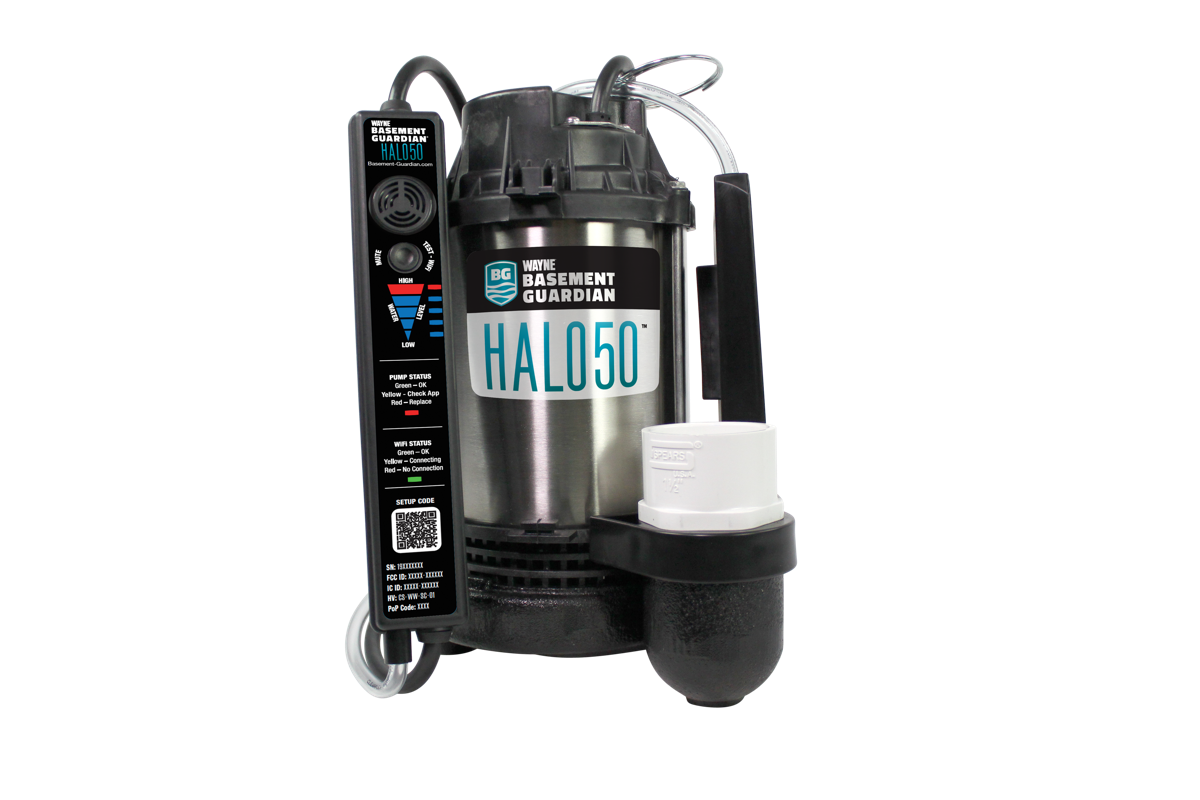
This is a two-part job, and it helps to keep them separate:
- Part 1 — Set up the pump with Wayne. The pump joins your home WiFi using Wayne's own Basement Guardian app. Wayne makes this device, so Wayne's app and manual are the source of truth for this part.
- Part 2 — Connect it to Shipshape. Once the pump is online, you add it in the Shipshape app so its status and alerts appear alongside everything else Shipshape watches.
Most homes finish in a few minutes. The quick start below is all you need. Everything under it is there only if a step doesn't go smoothly.
Quick Start
Part 1 — Set Up the Pump (Wayne's app)
- Install the Basement Guardian app (iOS or Android) and create a Basement Guardian account.
- Put your phone on your home WiFi, standing near the pump. On iPhone, allow Bluetooth, Local Network, and Camera when asked.
- In Basement Guardian: tap Add a Device, scan the QR code on the pump controller, then enter your WiFi password when prompted. The controller's WiFi light turns green when it connects.
For the full Wayne instructions, see the HALO50 manual and resources below.
Part 2 — Connect It to Shipshape
Once the pump shows online in Basement Guardian, open the Shipshape app. It's just three steps:
- Add the pump. Tap Add Appliance and choose Sump Pump.
- Connect it to Wayne. Under Connect Sensors, add a water sensor, then Add New Gateway → Wayne and log in to your Wayne (Basement Guardian) account.
- Link and save. Link the water sensor and the power sensor, then tap Save.
That's it. Your pump's status, water level, and alerts now flow into Shipshape automatically. (Optional: open the pump's Settings anytime to add the model, install date, and notes for more complete tracking.)
If a step didn't work, the most common snag is the WiFi step in Part 1, and it's almost always your home network, not the pump. Jump to Pump Will Not Connect to WiFi below.
More From Wayne
Wayne builds and supports the pump itself, so for anything about the hardware or the Basement Guardian app, go straight to the source:
- HALO50 product page and specs: waynepumps.com/product/halo50
- Owner's manual (HALO50 install guide, English and Spanish): Wayne operating manuals
- Basement Guardian app and system: basement-guardian.com
- Wayne customer support: 1-800-237-0987
The HALO50 carries a 10-year warranty, so a genuinely defective pump is covered by Wayne.
One Thing Worth Knowing
The pump's WiFi is 2.4 GHz only — it cannot join a 5 GHz network. During setup your phone talks to the pump over Bluetooth and hands it your WiFi details. This single fact explains nearly every setup problem below. Note this is a Part 1 (Wayne setup) issue — it has nothing to do with Shipshape.
Pump Will Not Connect to WiFi
The usual symptom: setup goes fine, the WiFi light blinks yellow (yellow means connecting, not an error), you scan the QR code, and then the app errors — something like "error connecting to WiFi" — and never asks for your WiFi password. If you've tried two pumps and both fail the same way, that's the tell: it's the network, not the pump.
Why it happens
Because the pump is 2.4 GHz only, it fails on networks that hide that band. The common offender is a mesh or prosumer router (Ubiquiti AmpliFi, eero, Netgear Orbi, Google Nest WiFi) running two settings together:
- Band steering on — the router pushes devices toward 5 GHz and can shut a 2.4 GHz-only device out of pairing.
- One combined network name (SSID) — both bands share one name, so you can't just pick the 2.4 GHz network from a list.
Newer routers may also default to WPA3, which some 2.4 GHz smart devices can't join.
Check these first
- Confirm which device is actually broadcasting your WiFi. Many homes have an ISP gateway (an AT&T box, for example) with its WiFi turned off, and a separate router (the mesh unit) running the real network. Change settings on the router that's actually broadcasting, not the dormant one.
- Stand close to the pump during setup, on the 2.4 GHz network.
- Use a simple WiFi name and password (no special characters) for the network the pump joins.
The fix: give the pump its own 2.4 GHz network
In your router's app:
- Add a dedicated 2.4 GHz network (SSID) with a simple name and password. On AmpliFi this is Settings → Wireless → Router Additional SSID (2.4 GHz). Most routers have an equivalent "add network" option — but read the next point first.
- Turn band steering off, at least during setup.
- Avoid "device isolation" or "IoT isolation" modes. Isolation stops your phone and the pump from seeing each other during pairing. You want a normal 2.4 GHz network, just not a band-steered one.
- Connect your phone to that 2.4 GHz network, then run pump setup again.
If you're locked out of the router
A common snag: no one has the router's admin or account password, so you can't change band steering. Recover it through the router app's Forgot password flow (you'll need the email the router account was set up with), or ask whoever installed the WiFi. Without router access, the steps above are blocked.
Temporary workaround: a phone hotspot
To confirm the pump itself works while you sort out the router, pair it to a 2.4 GHz hotspot from a second phone:
- iPhone: Settings → Personal Hotspot → Maximize Compatibility ON (forces 2.4 GHz), then run setup against the hotspot.
This proves the pump pairs and reports data, but it's not permanent — the pump drops offline whenever the hotspot is off. Use it to confirm hardware, then fix the home network properly.
Last resort
Factory-resetting and reconfiguring the whole home network works, but only do it if it's your own router and you accept reconfiguring every other device on it. Try the targeted 2.4 GHz fix first.
What Shipshape Watches Once Connected
Shipshape links the Wayne pump the same way it links other smart-home accounts like Nest or Ecobee — a secure sign-in to your Basement Guardian account (Part 2, step 4). After you approve it once, data flows automatically; you don't re-enter anything. If you change your Basement Guardian password, you may need to reconnect.
Once connected, Shipshape monitors the pump and raises alerts for:
- Pump failure or pump offline
- High water level in the basin
- Discharge leak
- Electrical faults (high current, low voltage)
These ride the same alert system as the rest of your home, so a pump problem reaches you by push — and, on paid tiers, SMS, email, or a call from monitoring — just like a leak or HVAC alert.
Controller Lights and Buttons
Pump Status light: Green = OK · Yellow = check the app · Red = replace the pump.
WiFi Status light: Green = connected · Yellow = connecting (normal during setup) · Red = no connection.
Button holds:
- 5 seconds — System Test (flashes blue)
- 10 seconds — Reboot (green)
- 15 seconds — Reset WiFi (yellow), then a confirm press
- 20 seconds — Factory Reset (red), then a confirm press
A factory reset plus a fresh app reinstall is worth trying once if setup is stuck. But if two pumps fail the same way, the problem is your network, not the pump — see Pump Will Not Connect to WiFi.
When to Call Support
For the pump itself (Part 1) — it won't connect even on a confirmed 2.4 GHz network with band steering off, or a light stays red after a reboot — contact Wayne support at 1-800-237-0987. The HALO50's 10-year warranty covers a genuinely defective unit. Have your model number and a quick description of what the lights are doing.
For the Shipshape side (Part 2) — the pump is online in Basement Guardian but isn't showing in Shipshape, or alerts aren't arriving — reach Shipshape support from inside the app.