Replace a Smart Plug on an Appliance
Overview
If a smart plug that monitors one of your appliances has failed or been replaced, you can pair the new plug and link it to that appliance yourself, right from the Shipshape app. It takes a few minutes.
A smart plug is the monitoring device that sits between your appliance and the wall outlet. It tracks energy use and reports back to SAM. The appliance itself, like a dehumidifier or sump pump, keeps running on its own whether the plug is connected or not. So while you swap the plug, leave the appliance plugged straight into the wall and it will keep working normally.
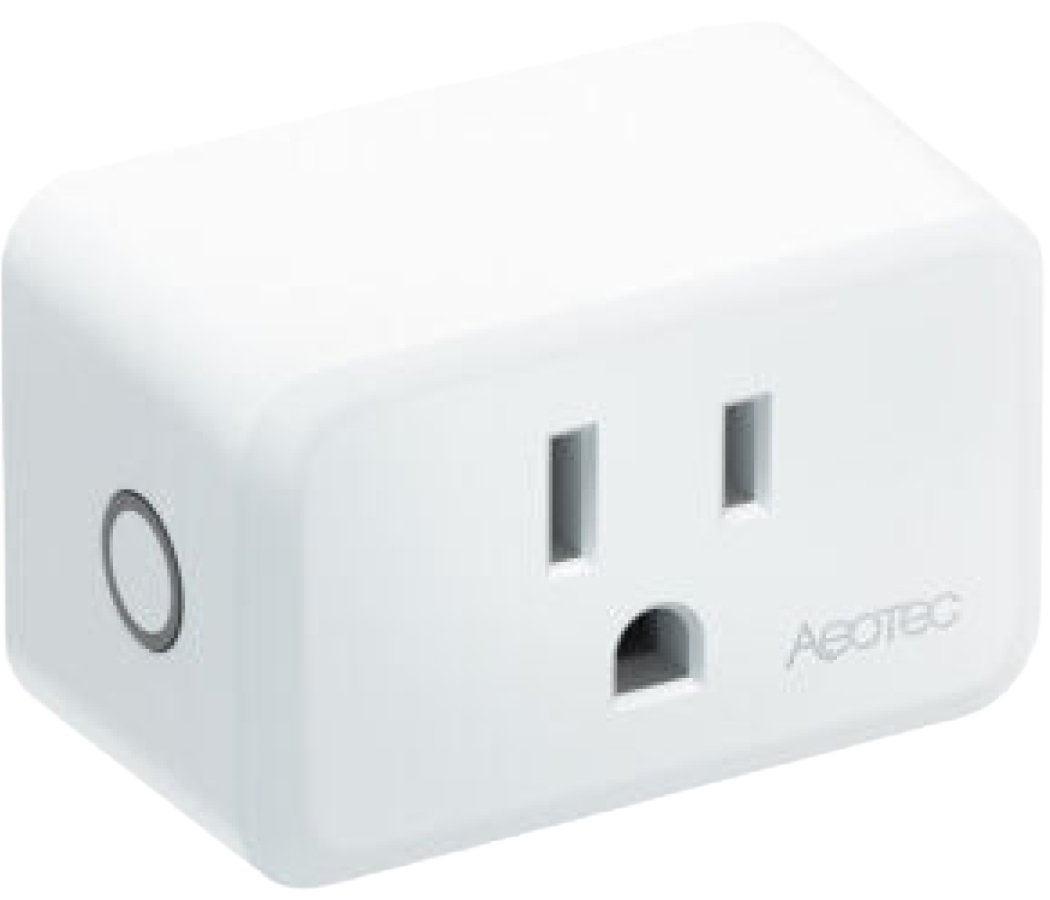
This guide walks through replacing the plug end to end: pairing the new one, linking it to your appliance, and removing the old one.
Before You Start
Have these ready:
- The new smart plug, and a working wall outlet within about 6 feet of your Shipshape gateway for pairing
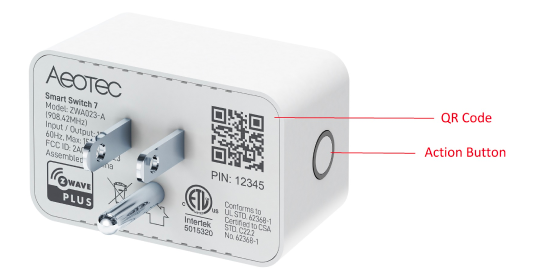
- The PIN / DSK code printed on the new plug and on its box (you may be asked for it during pairing)
- The Shipshape Home app, signed in to the correct home
- A few minutes
Tip: Pair the new plug close to the gateway first, then move it to its final spot once it is online. The initial handshake is most reliable at short range.
While you do this, keep your appliance plugged directly into the wall so it never loses power.
Step 1: Open the Appliance Settings
- Open the Shipshape Home app and go to the appliance whose plug you are replacing (for example, your dehumidifier).
- Tap the gear icon in the top right corner of the appliance screen.
- You are now on the Appliance Details settings menu.
Step 2: Open Smart Sensors
On the Appliance Details menu, tap Smart Sensors.
This opens the Connect Devices screen. Here you will see your gateway, whether it is Online or Offline, how many devices are linked to it, and which device is currently assigned to this appliance. A failed or removed plug may show as offline here.
Step 3: Pair the New Plug
- Plug the new smart plug into an outlet near the gateway. Give it a few seconds to power up.
- On the gateway card, tap Add Device.
- On Setup Device, choose the device you want to pair when asked "Which device do you want to pair right now?" and tap Continue.
- The app shows Adding Device and begins pairing. This can take up to about 2 minutes — leave the app open.
- If you are prompted to Enter Pin code, type the PIN / DSK printed on the plug or its box, then tap Send Pin.
- When pairing succeeds you will see a Great job! confirmation. Tap Continue to return to Connect Devices.
The PIN / DSK code and QR code the app asks for are printed on the plug itself and on its box. Your plug may look a little different from the one below, but the markings are in the same place.
If pairing does not complete, see My Smart Plug Won't Pair for exclusion and reset steps.
Step 4: Link the New Plug to the Appliance
Back on the Connect Devices screen, the plug you just paired appears under your gateway and is usually selected automatically.
- If the old plug is still selected, tap Unselect all, then tap the new device to select it.
- Make sure the new plug is the device assigned to the appliance's sensor.
When the correct device is selected, tap Continue to save. If you leave the screen with unsaved changes, the app asks Save changes? — tap Save to confirm.
That's it. SAM will begin monitoring your appliance through the new plug within a minute or two. Once it shows online, you can move the plug to its permanent outlet.
Step 5: Remove the Old Plug (Optional)
The old plug will keep showing as a device, usually offline. To clear it out:
- On the Connect Devices screen, open the old device and choose Exclude Device to remove it from your network.
- If the old plug is completely dead and will not respond, that is fine — leave it unselected. It no longer affects monitoring once the new plug is linked and saved.
Have a failed plug to dispose of? See Hardware Warranty & Replacements.
Quick Reference
| Step | Where | What to tap |
|---|---|---|
| Open settings | Appliance screen | Gear icon (top right) |
| Open sensors | Appliance Details | Smart Sensors |
| Pair new plug | Connect Devices → gateway card | Add Device → Continue |
| Enter security PIN (if asked) | Adding Device | Enter Pin code → Send Pin |
| Link to appliance | Connect Devices | Select new device → Continue → Save |
| Remove old plug | Connect Devices | Exclude Device |
When to Contact Support
Reach out to Shipshape support if:
- The new plug will not pair after a close-range attempt and a factory reset (see the pairing guide).
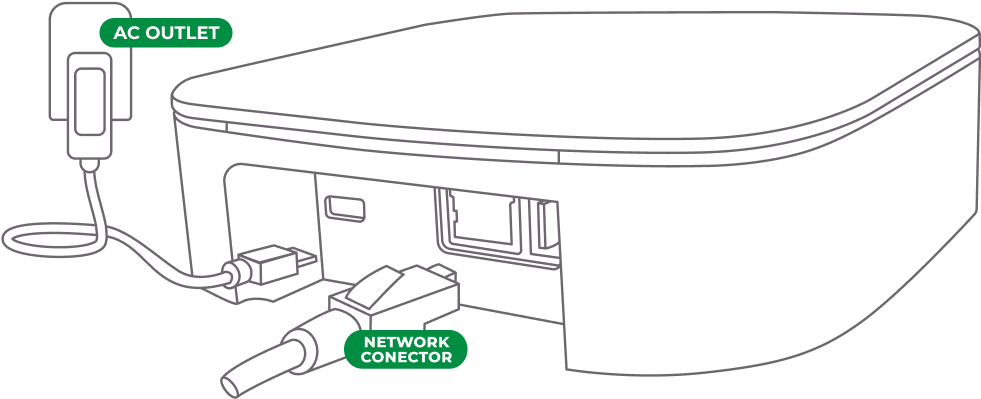
- The gateway shows offline and you cannot bring it back (see Gateway Is Showing Offline).
- The new plug pairs but the appliance still shows no readings after a few minutes.
- You are not sure which device belongs to which appliance.
When you contact support, have your home address or account name ready, along with which appliance you are working on and the serial number or QR code on the new plug. Our team can pair, exclude, and link devices remotely and watch it happen in real time.