Transfer Your Home to a New Owner
Selling your house does not mean ripping the monitoring out of the wall. You can hand the whole Shipshape system to the buyer from your phone, and they pick up a home that already knows its own equipment, its own service history, and its own quirks.
It takes about a minute. But it is permanent, so read the section on what changes before you send the request.
Transferring is not the same as adding someone. Transferring hands the home over and removes it from your account. If you just want your spouse or family to see the home alongside you, you want Invite a Family Member instead.
Before you start
- Only the home's owner can transfer it. If you were added to this home as Family or Guest, you will not see the option. The owner has to do it.
- You need the buyer's email address. Use the exact address they will sign in with.
- They do not need a Shipshape account yet. The invitation walks them through creating one.
- Save anything you want to keep first. The home's record travels with the house. If you want a copy for yourself, see Sharing Your Home Health Record.
Step 1 — Open your home profile
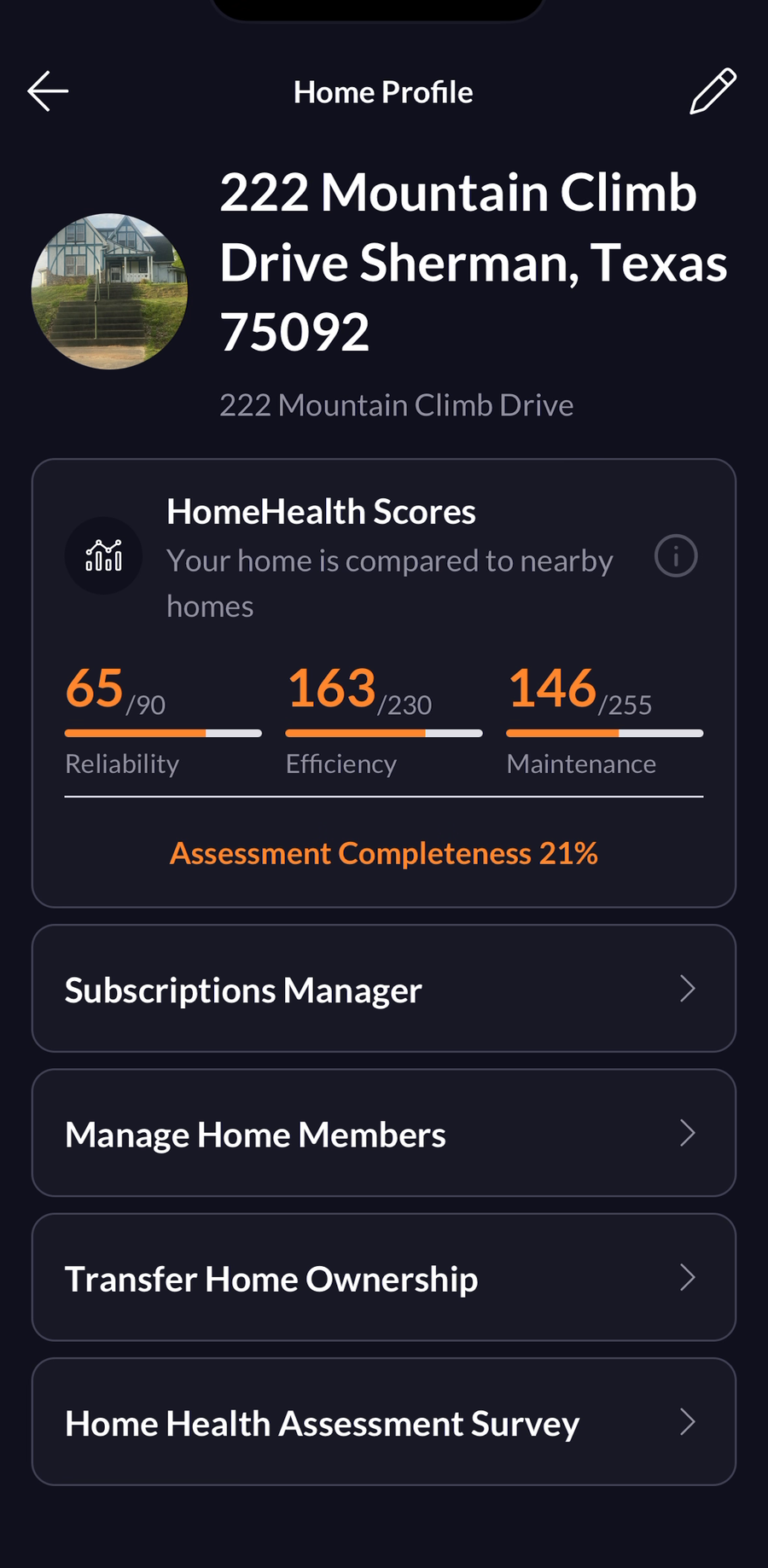
Open the Shipshape app and tap your profile photo in the bottom right corner. Tap the card with your home's address to open Home Profile, then scroll past your HomeHealth Scores and tap Transfer Home Ownership.
Step 2 — Tap the + button
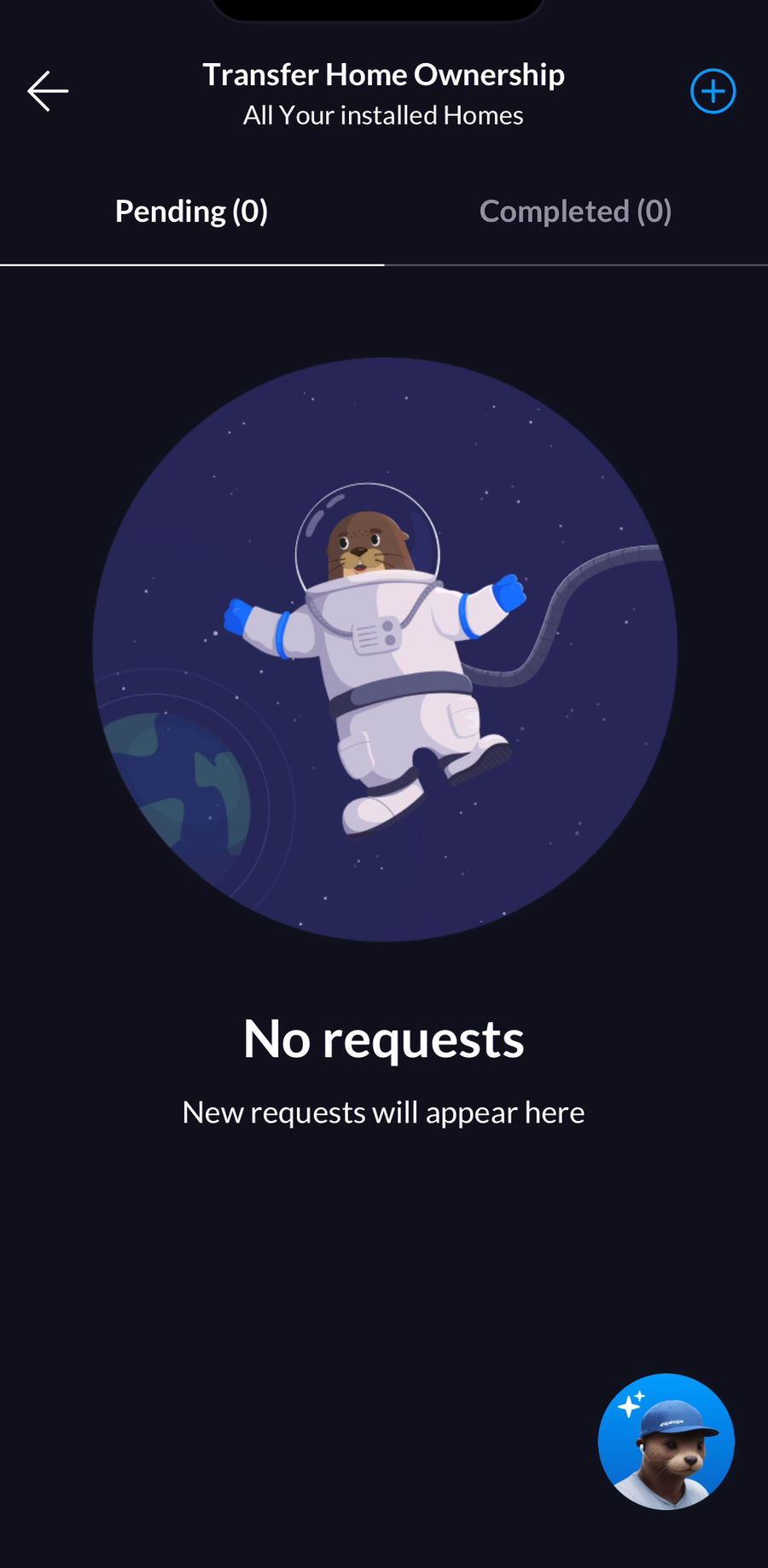
This screen lists every transfer you have going, split into Pending and Completed. The first time you open it, it is empty. Tap the + in the top right corner to start one.
Step 3 — Pick the home
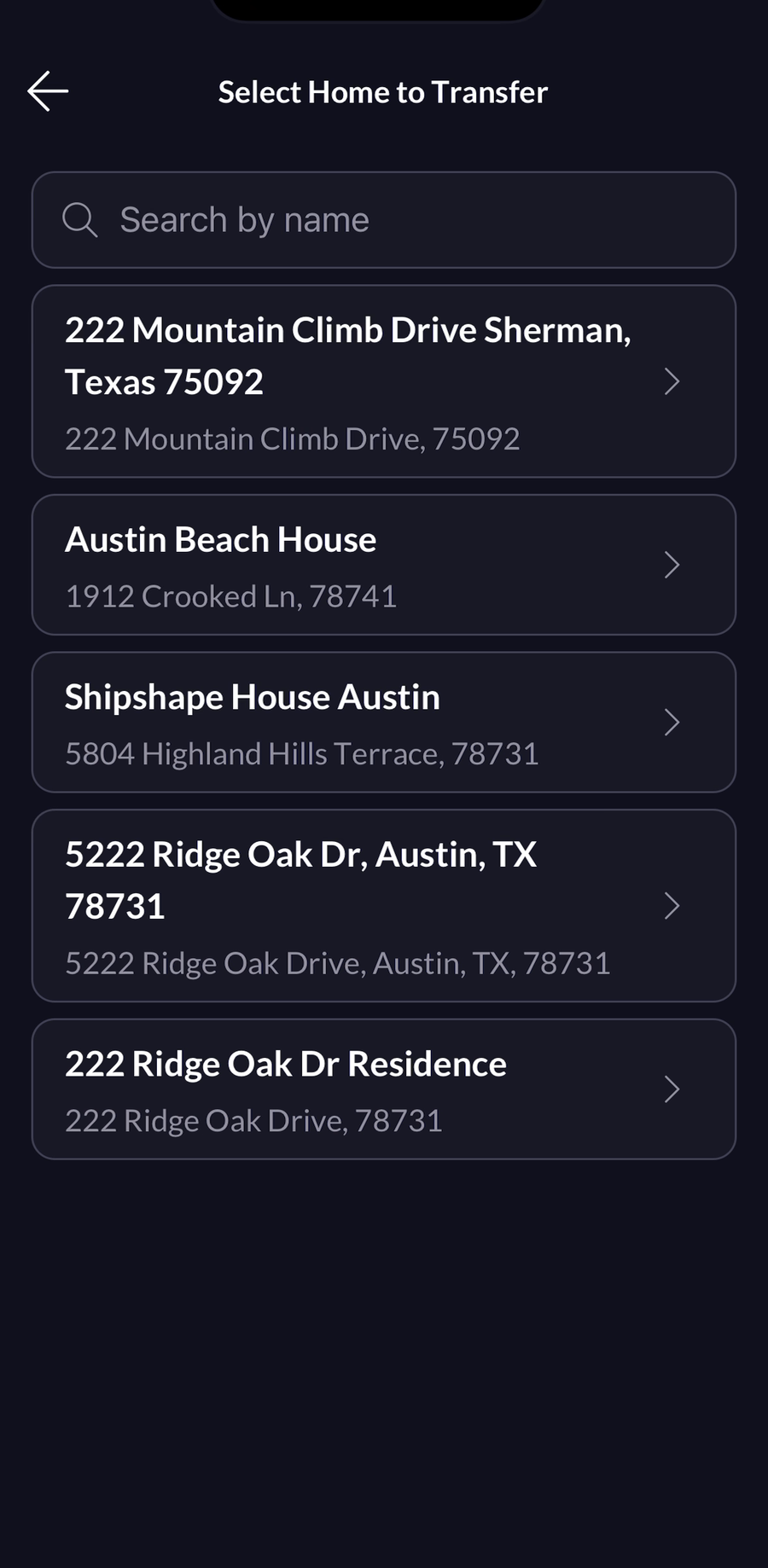
If you have more than one home on your account, choose the one you are selling. Search by name if the list is long.
Step 4 — Enter the buyer's email and send
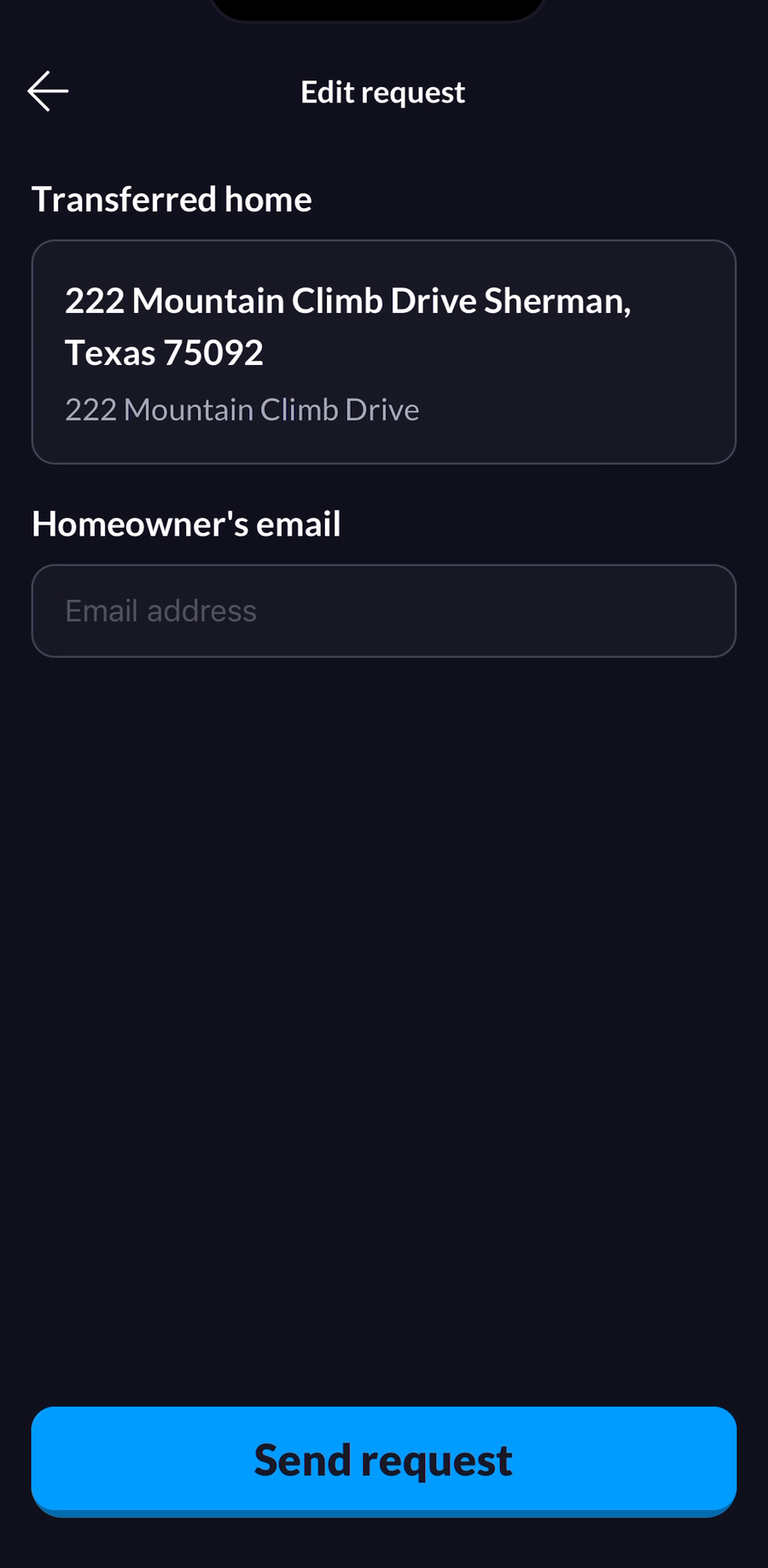
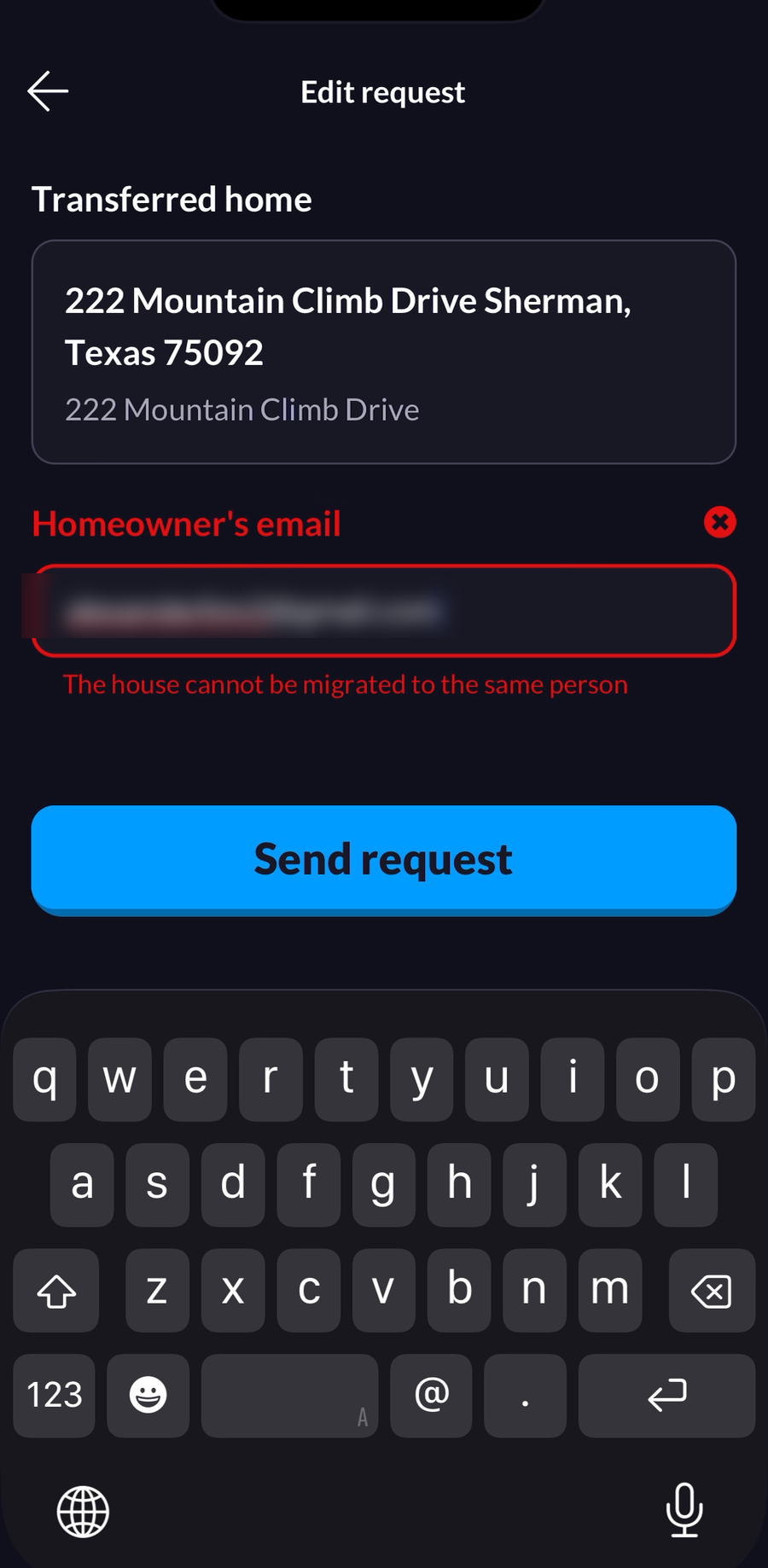
Check that the home shown under Transferred home is the right one. Enter the new owner's email under Homeowner's email, then tap Send request.
Step 5 — Confirmation
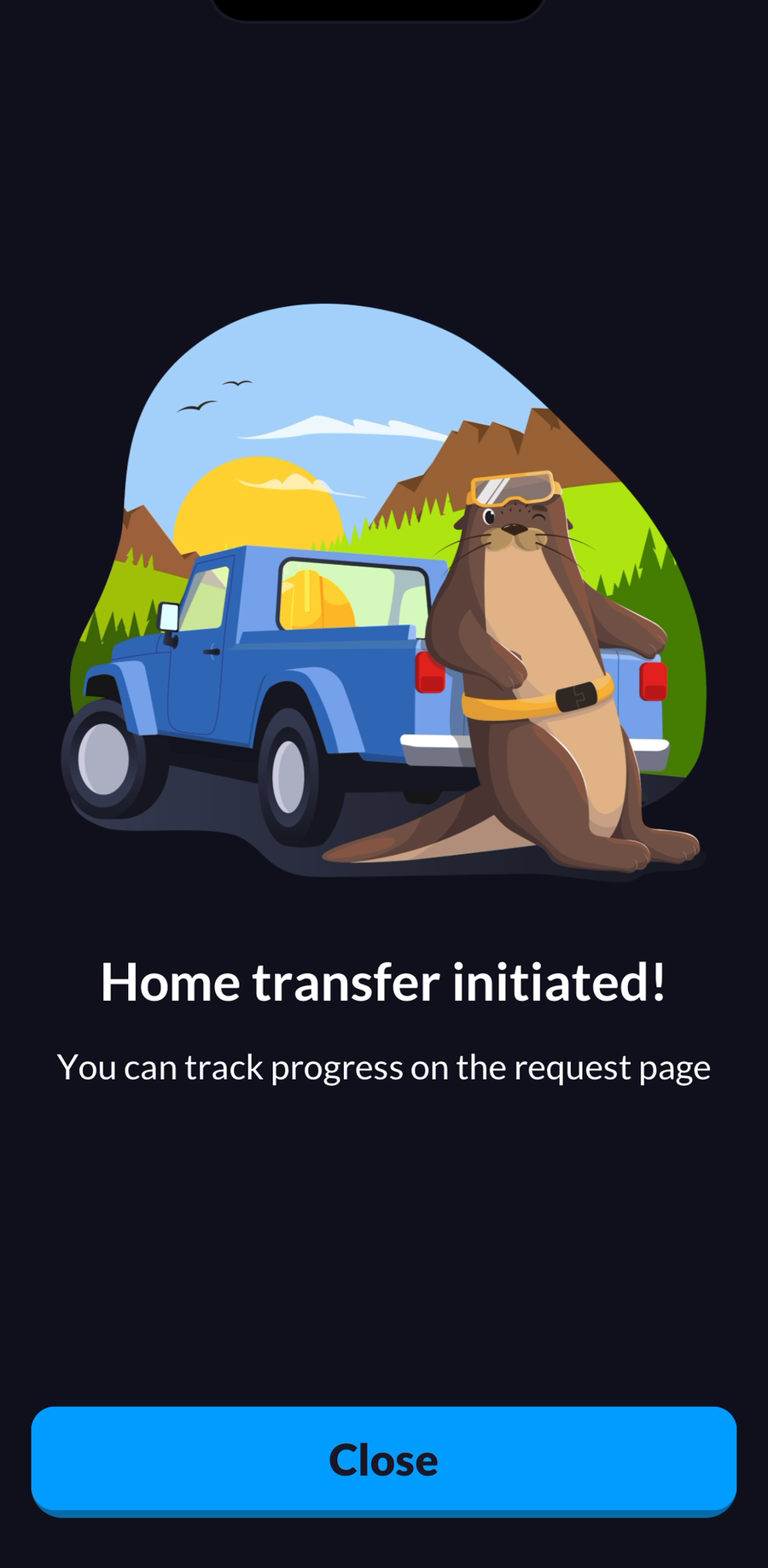
You will see Home transfer initiated. Tap Close. Your request now sits under the Pending tab until the new owner accepts it.
Until they accept, nothing changes. The home stays yours and your alerts keep coming.
What happens the moment they accept
This is the part worth reading twice. Accepting is a clean handoff, not a shared arrangement.
| What | What happens |
|---|---|
| The new owner | Becomes the sole owner of the home. |
| You | Lose access. The home comes off your account. |
| Everyone else on the home | Also removed. Your spouse, your kids, your house sitter, anyone you invited. Nobody carries over. |
| Hardware | The gateway, sensors, and smart plugs stay with the house and become theirs. |
| The home's record | Appliances, equipment details, and service history go with the house. |
| Coverage plans | Do not carry over. The new owner chooses their own. |
| Your service professional | Carries over, as long as they are still an active Shipshape provider. |
Because your family members lose access too, tell them it is coming. Otherwise the home simply disappears from their app with no explanation.
Timing: transfer at closing, not before
Wait until the sale actually closes. While the request is pending you keep full access, so there is no advantage to sending it early, and a deal that falls through after the buyer has already accepted means asking them to transfer it back to you.
Before you tap Send: check your subscription
Coverage plans do not move with the home, so a paid monitoring subscription needs a decision from you. Moving to a new place and want to keep the service there? Selling and want billing to stop? Either way, sort it out before the transfer, because once the home leaves your account you can no longer manage it from the app.
Call (512) 221-2584 or email support@shipshape.ai and tell them you are transferring a home. Details are in Billing and Payment FAQ.
Common questions
I typed the wrong email address. Send a new request to the right address. A new request replaces the pending one, so you cannot end up with two live transfers on the same home.
Can I cancel after sending? Yes, any time before they accept. Your request is listed under the Pending tab on the Transfer Home Ownership screen. If you get stuck, support can cancel it for you. Once the new owner accepts, only they can transfer it back.
Does the request expire? No. It stays valid until they accept it, decline it, or it is cancelled.
What if they decline? Nothing changes. The home stays yours.
They already have a Shipshape account. Does that matter? No, it makes it easier. The transfer can complete as soon as they sign in.
Can I transfer a home to myself, or to a second email of mine? No. A transfer has to go to someone else, and the app will stop you.
I own several homes. Does this affect the others? No. Only the home you picked in Step 3 is transferred. See Managing Multiple Properties.
I am moving and taking the equipment with me. That is a different situation. See Moving to a New Home.
The buyer does not want Shipshape. Do not transfer. Talk to your service professional about removing the hardware, or leave it in place and let the new owner decide later. You can also delete your account once you no longer need it.