Invite a Family Member to Your Home

Your home is everyone's home. Add the people who live in it — or care about it — so they see the alerts, see the scores, and can act when something happens. Under a minute.
Stuck on the Send button? Tap into the email field, type the address, then press the Enter (Return) key on your keyboard once. That confirms the email and the Send button fires on the next tap. This is the most common snag, jump to the fix.
Step 1 — Open your Profile
Open the Shipshape app. From the Profile tab, tap the home card with your address.
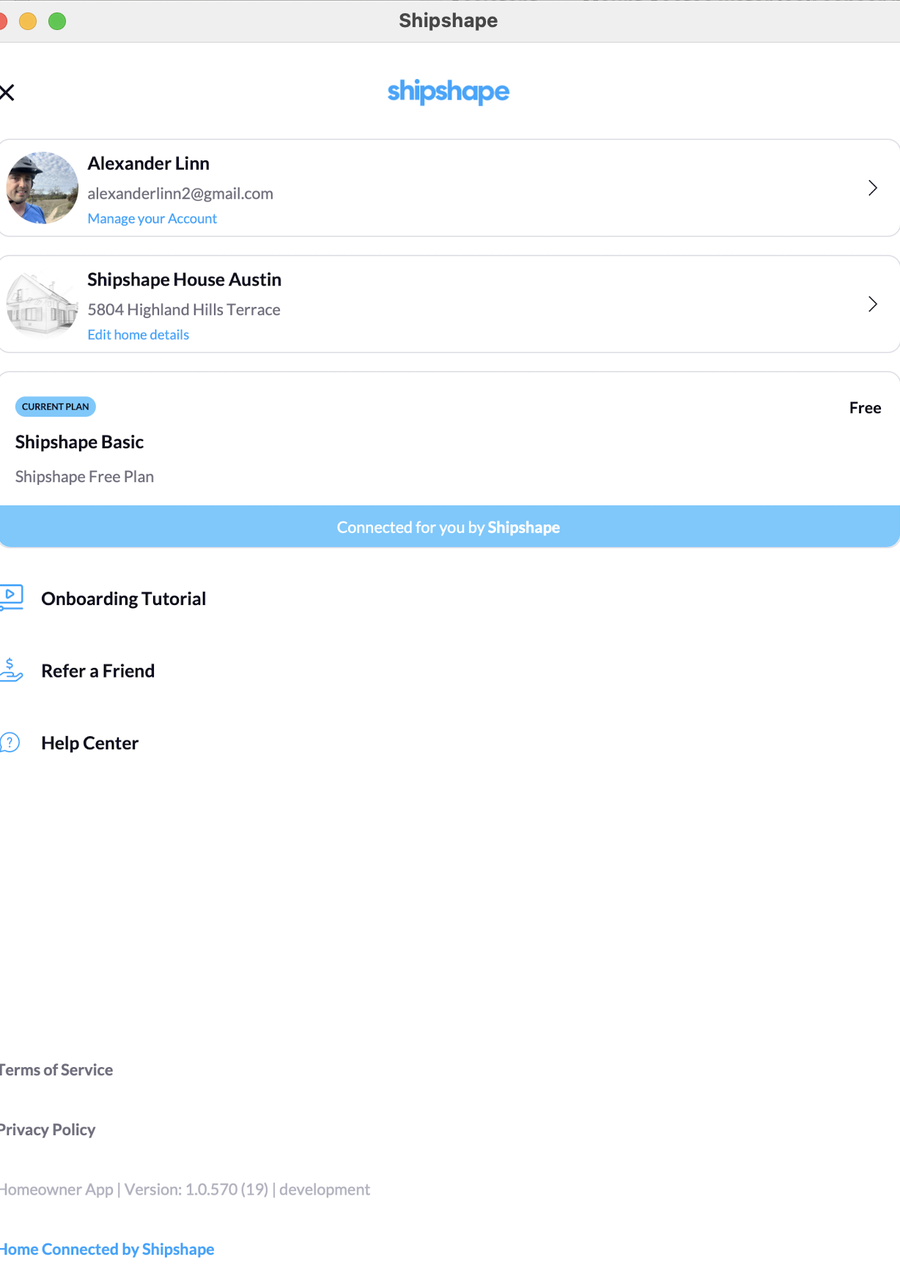
Step 2 — Tap "Manage Home Members"
On the Home Profile screen, scroll past your Home Health Scores and tap Manage Home Members.
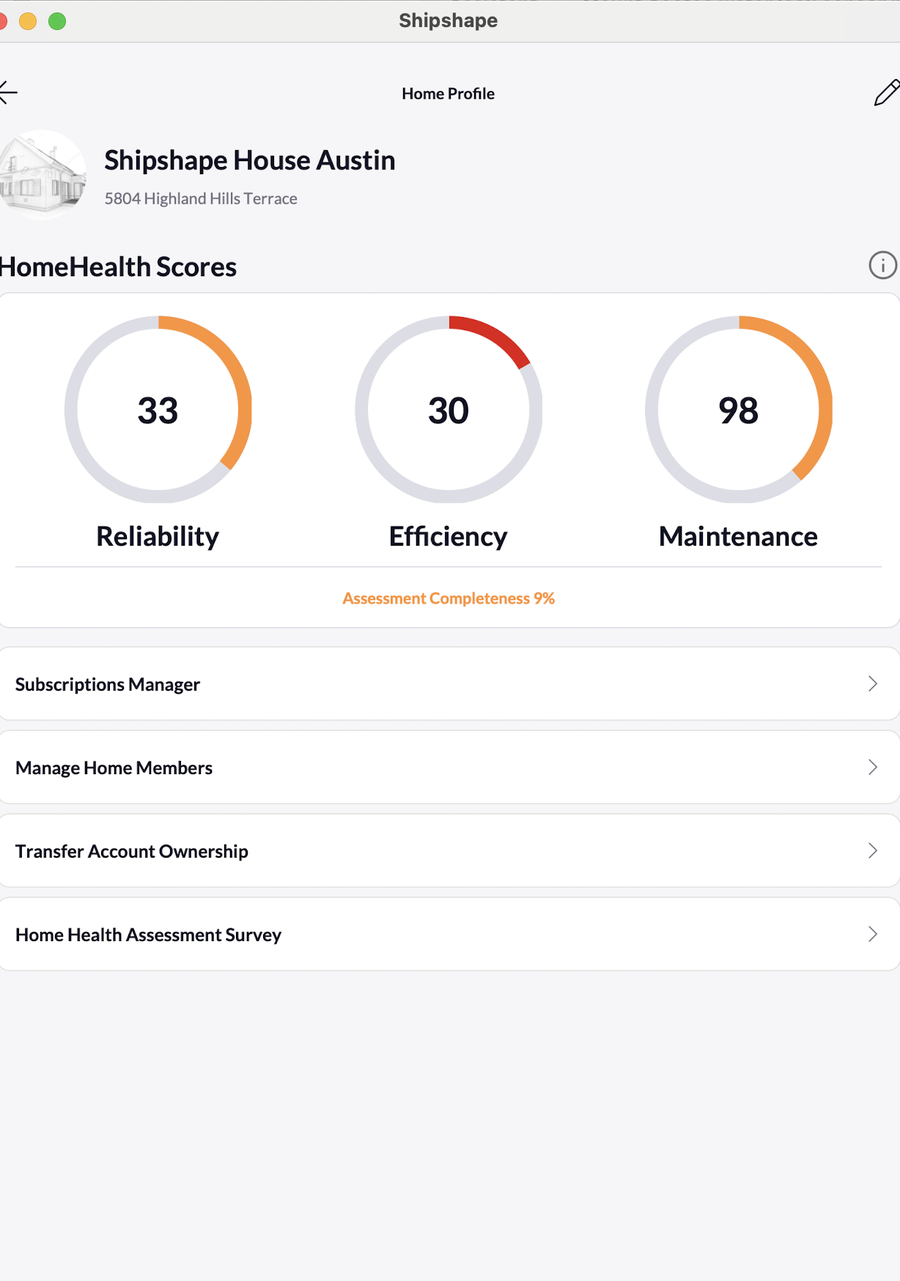
Step 3 — Tap "Add Member"
You'll see who's already on the home and how many of your ten spots are still open. Tap the blue Add Member button at the bottom.
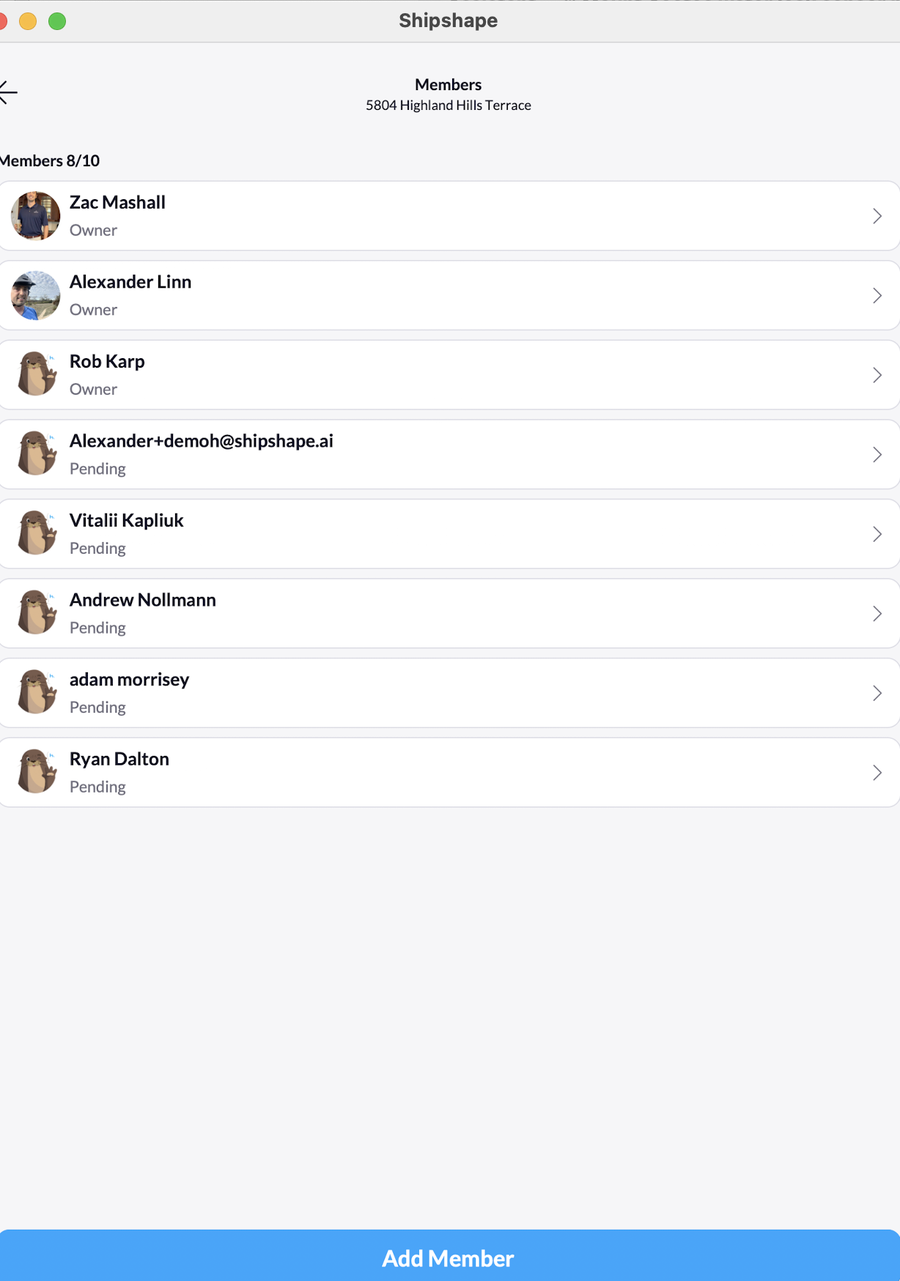
Step 4 — Email, role, Send
Enter their email. Pick a role — Family is right for most people. Tap Send.
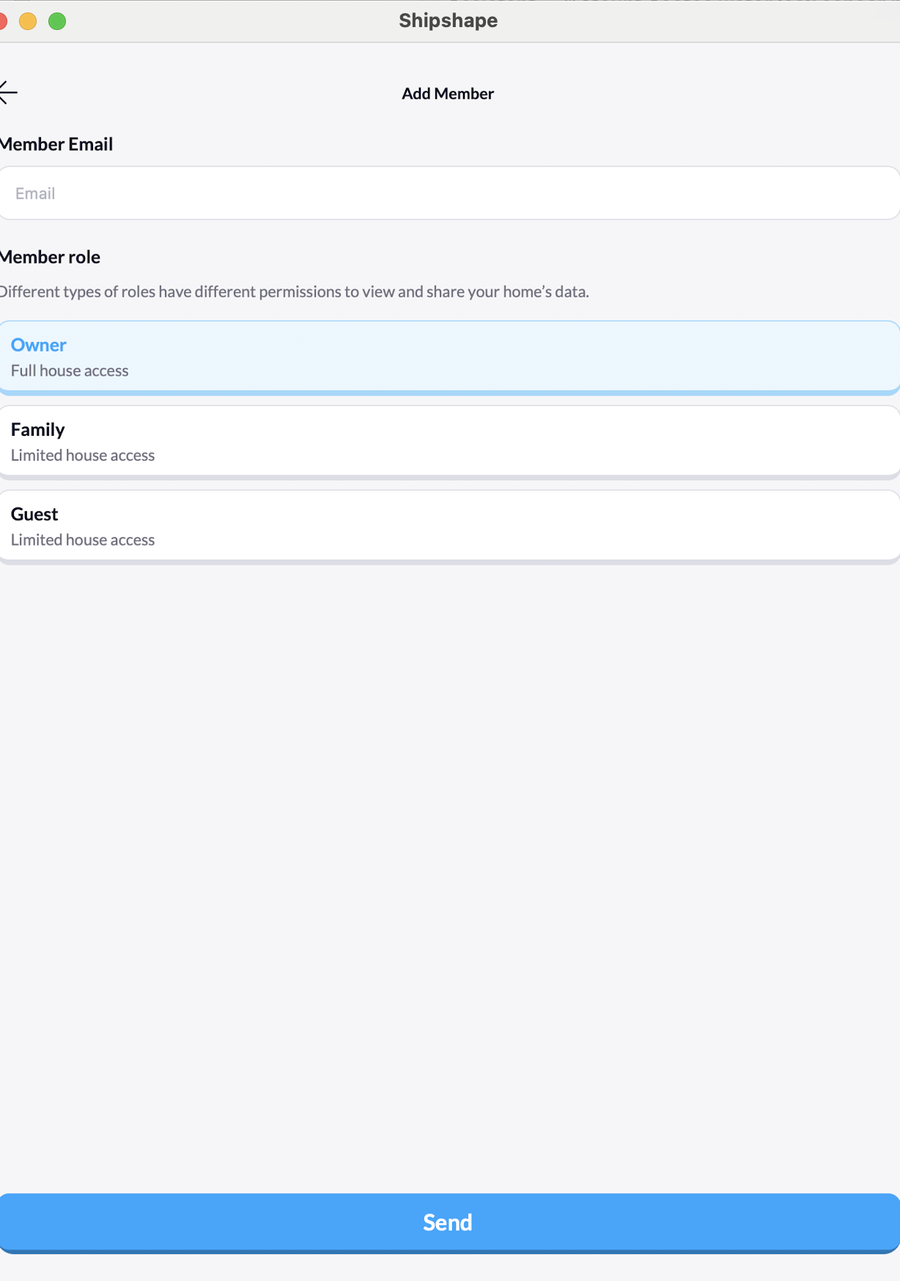
They'll get an email invitation within a minute. As soon as they accept, they show up in your Members list with their role.
Which role should I pick?
| Role | Give it to | What they get |
|---|---|---|
| Owner | Your spouse or co-owner | Full control. Can do everything you can, including adding or removing other members. |
| Family | Adult kids, parents, long-term household members | Sees the home, gets all alerts. Can't change membership or billing. Right pick for most people. |
| Guest | House sitter, friend watching the place, short-term access | Gets alerts while their access is active. Can't see history or scores. |
You can change a role any time. Tap the member, tap their role, pick a new one. Change is instant.
Stuck on Send?
This trips up almost everyone the first time.
If the email field looks filled in but the Send button does nothing, your keyboard is still holding focus on the email field. The fix:
- Tap once in the email field.
- Type the email (or check the one you already typed).
- Press the Enter (Return) key on your keyboard. The keyboard collapses.
- Tap Send. It fires.
That's it. We're shipping a fix that removes the extra step in the next app update.
Other common snags
- "Email already in use." They already have a Shipshape account. Use the exact email they signed up with — capitalization and dots count.
- Invite never arrived. Tell them to check Gmail's Promotions tab, Outlook's Other inbox, or Spam. If still missing after 5 minutes, tap their pending entry in your Members list and pick Resend Invite.
- Invite expired. Invitations expire after 14 days. Same fix — tap the pending entry, tap Resend Invite.
- Out of spots. Ten members per home. If you need to free a spot, tap any member and pick Remove — they lose access immediately, no warning email is sent.
One last thing
Don't make everyone an Owner. Owners can remove other Owners — including you. Use Owner for true co-owners only. Family is the right choice in almost every case.